%20{%20:root%20{%20--deepread-stroke:%20%23E5E7EB;%20}%20}%20.dark%20{%20--deepread-stroke:%20%23E5E7EB;%20}%20%3c/style%3e%3crect%20x='40'%20y='30'%20width='220'%20height='260'%20rx='28'%20ry='28'%20stroke='var(--deepread-stroke)'%20stroke-width='16'%20fill='none'/%3e%3cpath%20d='M180%2030v52c0%2010%208%2018%2018%2018h62'%20stroke='var(--deepread-stroke)'%20stroke-width='16'%20fill='none'/%3e%3cline%20x1='70'%20y1='130'%20x2='200'%20y2='130'%20stroke='var(--deepread-stroke)'%20stroke-width='16'%20stroke-linecap='round'/%3e%3cline%20x1='70'%20y1='165'%20x2='200'%20y2='165'%20stroke='var(--deepread-stroke)'%20stroke-width='16'%20stroke-linecap='round'/%3e%3cline%20x1='70'%20y1='200'%20x2='170'%20y2='200'%20stroke='var(--deepread-stroke)'%20stroke-width='16'%20stroke-linecap='round'/%3e%3c!--%20green%20download%20arrow%20in%20bottom%20right%20corner%20--%3e%3cpath%20d='M210%20202v58'%20stroke='var(--deepread-accent)'%20stroke-width='18'%20stroke-linecap='round'/%3e%3cpath%20d='M195%20245l15%2015%2015-15'%20fill='none'%20stroke='var(--deepread-accent)'%20stroke-width='18'%20stroke-linecap='round'%20stroke-linejoin='round'/%3e%3c/svg%3e)
Tesseract OCR in Python: Step-by-Step Tutorial with pytesseract
Learn Tesseract OCR in Python with pytesseract: install it, clean images, tune page segmentation, read PDFs, fix errors, and know when to switch tools.
Tesseract is the OCR engine most Python developers try first, because it is free, runs locally, and takes about ten lines of code to start. This tutorial walks through the full path: installing the engine, running your first script, cleaning images so the output is usable, controlling layout with page segmentation modes, pulling word positions, handling PDFs and other languages, and fixing the errors that stop most first attempts.
OCR projects usually begin with a specific document type. Receipts and expense reports are a common first target, and document scanning OCR for expense tracking is covered in its own post on this site. Business cards are another frequent starter, and the business card OCR API post treats that case separately.
Every Python sample here was run against Tesseract 5.3.4 and pytesseract 0.3.13 on Python 3.13. Where a result is shown, it came from a synthetic invoice image generated for this tutorial, not from a vendor demo.
What Tesseract and pytesseract Actually Are
Tesseract is an open source OCR engine released under the Apache 2.0 license. The Tesseract project provides both a library and a command-line program. Version 4 added an LSTM neural network recognizer, and the 5.x series, the current stable major version, began with release 5.0.0 on November 30, 2021. The legacy engine can still be selected with a flag, but it needs traineddata files that include legacy models.
pytesseract is a thin Python wrapper around the command line program. It does not contain an OCR engine of its own. The pytesseract package calls the Tesseract executable, so the executable must be installed on the machine before any Python code will work. The current release is 0.3.13, published in August 2024, under the Apache 2.0 license, and it requires Python 3.8 or newer plus Pillow.
Two limits shape everything that follows. Tesseract opens images through the Leptonica library, which means it does not read PDF documents directly. And the project's own FAQ says it is designed for printed text, so handwriting works poorly. Medical paperwork adds its own concerns around privacy and form layouts, and healthcare document OCR is the dedicated post for that.
Plain OCR text is also only the first step in most business workflows. Invoices are the clearest case, because the text has to be turned into vendor, date, line items, and totals, a problem that invoice digitization covers from the document side. Teams comparing newer model-based readers against classic engines can also check the LLM OCR accuracy leaderboard.
What You Need Before You Start
Gather four things before writing code:
- Python 3.8 or newer
- The Tesseract executable, installed at the operating system level
- The pytesseract package, plus Pillow
- Optional but recommended: OpenCV for image cleanup, and pdf2image with Poppler if you will read PDFs
If you have a choice, use input images at 300 DPI or higher. The Tesseract documentation recommends that resolution, and it is the single cheapest accuracy improvement available.
Install Tesseract and pytesseract
Linux (Ubuntu and Debian)
sudo apt install tesseract-ocr

pip install pytesseract pillow opencv-python pdf2image
Add language packs the same way, for example sudo apt install tesseract-ocr-fra for French.
macOS
brew install tesseract

pip install pytesseract pillow opencv-python pdf2image
brew install tesseract-lang adds the extra language packs.
Windows
The Tesseract project does not ship its own Windows binary, so most people use the community build from the UB Mannheim Tesseract wiki. Run the installer, select any extra languages during setup, and note the install folder, which is usually C:\Program Files\Tesseract-OCR. Then install the Python packages:
pip install pytesseract pillow opencv-python pdf2imageIf tesseract is not on your PATH, tell pytesseract where it lives:
import pytesseract

pytesseract.pytesseract.tesseract_cmd = r"C:\Program Files\Tesseract-OCR\tesseract.exe"
Verify the Install
import pytesseract

print(pytesseract.get_tesseract_version())
A version number means Python can reach the engine. A TesseractNotFoundError means it cannot, and the fix is the path setting above.
Run Your First OCR Script
The simplest call is image_to_string:
import pytesseract

from PIL import Image

text = pytesseract.image_to_string(Image.open("invoice.png"))

print(text)
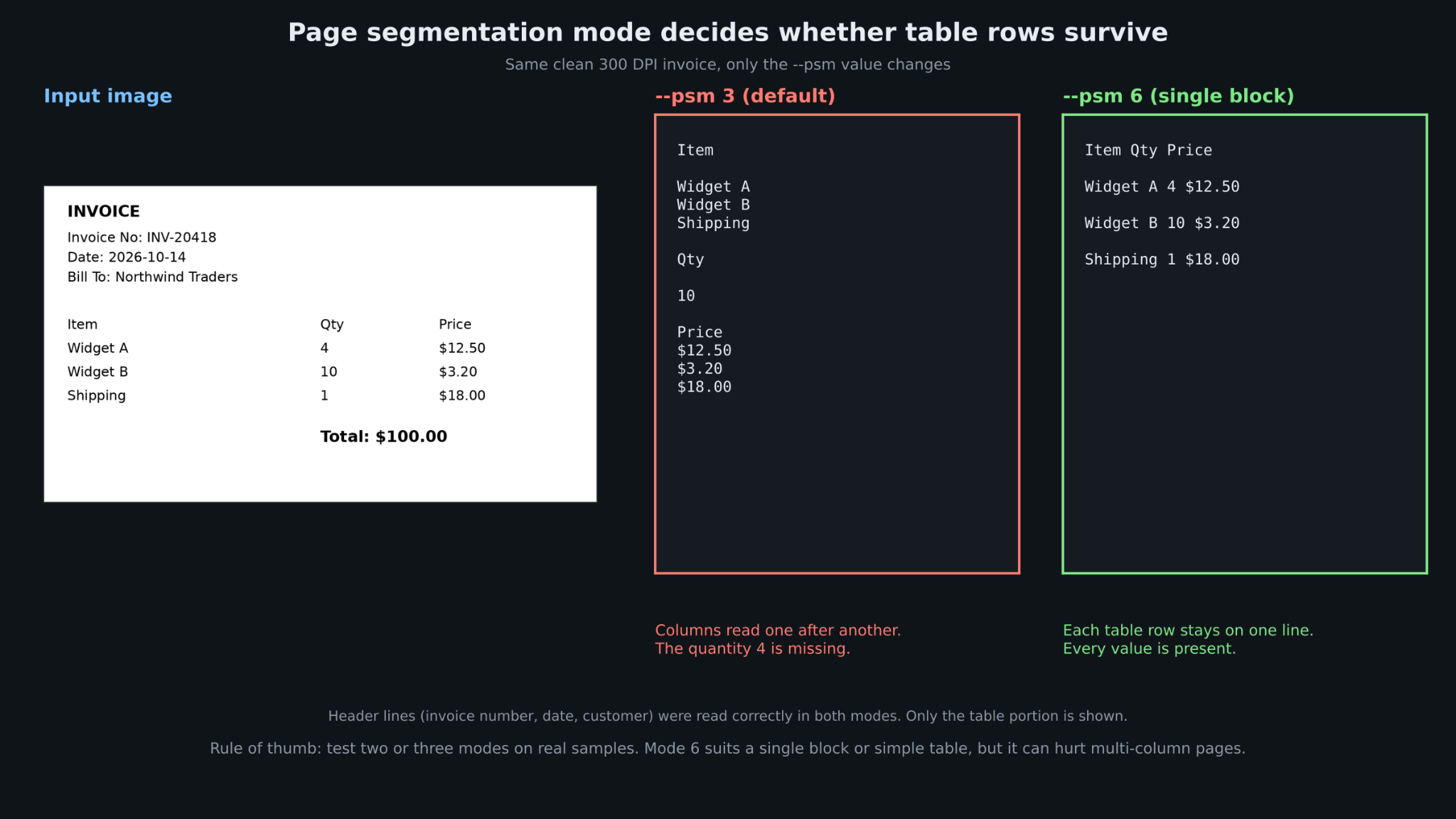
On a clean 300 DPI render of a simple invoice, this returned every heading and field correctly. The weakness showed up in the table. Tesseract read the Item column, then the Qty column, then the Price column, so line items came back as separate blocks instead of rows:
Item

Widget A

Widget B

Shipping

Qty

10

Price

$12.50

$3.20

$18.00
The quantity 4 for Widget A was also missing from the output. That is a layout problem rather than a recognition problem, and the page segmentation section below fixes it. First, the image itself.
Preprocess Images Before OCR
Real scans are rarely clean. Phone photos have shadows, scanners add noise, and pages sit a few degrees off horizontal. To test this, the same invoice was rotated 3 degrees, blurred, given a brightness gradient from left to right, and covered with grain, then saved at 96 DPI. The default call returned this:
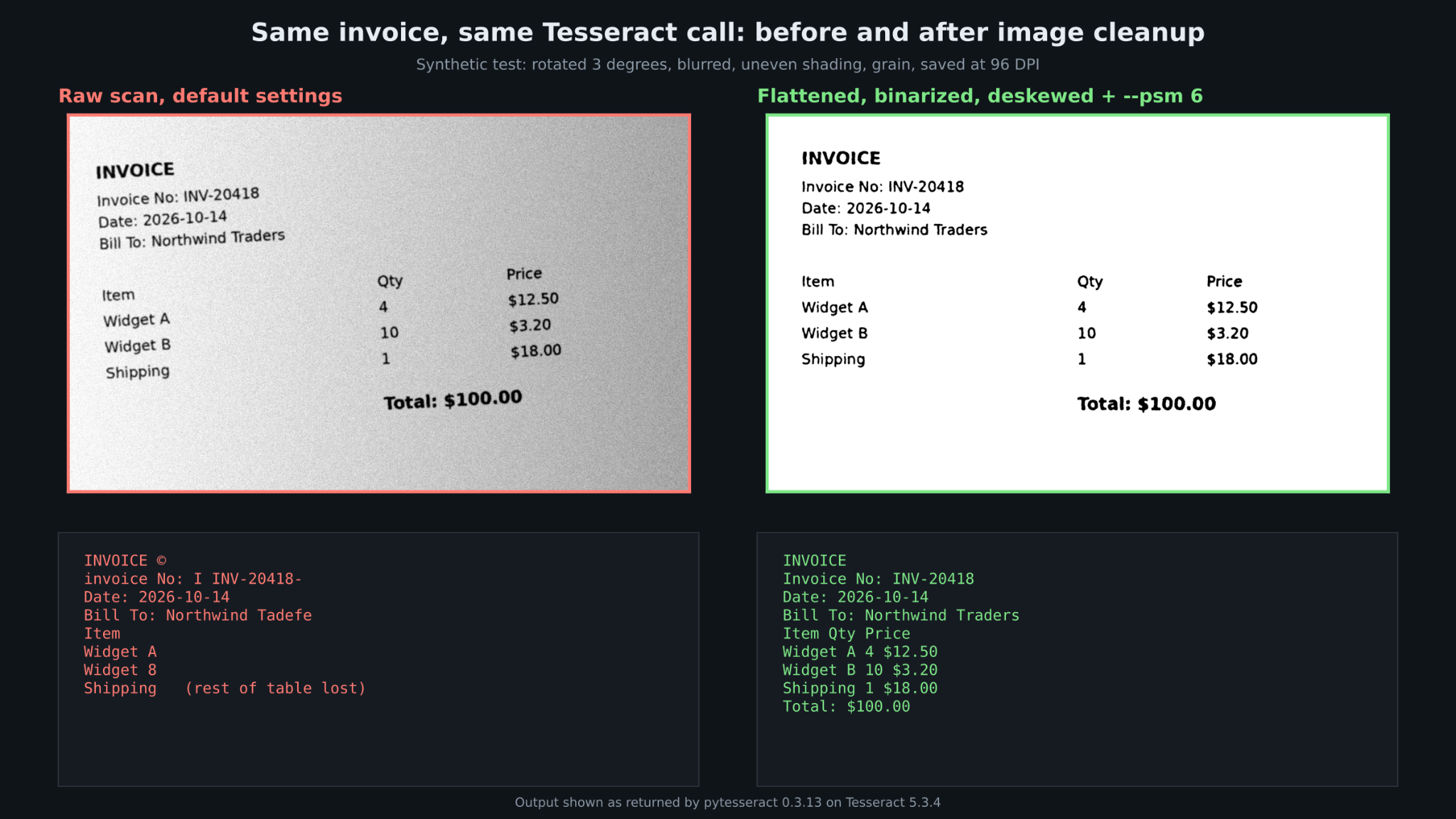
Stray symbols (including a dash after Shipping), a wrong name, an 8 in place of a B, and most of the table gone. The output above is cut where the recognized text stopped. The Tesseract documentation lists the usual fixes: rescaling, binarization, noise removal, deskewing, and removing borders. The functions below combine them. They flatten uneven lighting by dividing the image by a blurred copy of itself, binarize with Otsu thresholding, then search for the rotation that makes text lines most horizontal.
import cv2

import numpy as np

def flatten(path, scale=1.5):

gray = cv2.imread(path, cv2.IMREAD_GRAYSCALE)

gray = cv2.resize(gray, None, fx=scale, fy=scale, interpolation=cv2.INTER_CUBIC)

background = cv2.medianBlur(gray, 51) # estimate uneven lighting

flat = cv2.divide(gray, background, scale=255) # remove shading

flat = cv2.GaussianBlur(flat, (5, 5), 0) # soften grain

_, bw = cv2.threshold(flat, 0, 255, cv2.THRESH_BINARY + cv2.THRESH_OTSU)

return bw

def rotate(img, angle):

h, w = img.shape

m = cv2.getRotationMatrix2D((w // 2, h // 2), angle, 1.0)

return cv2.warpAffine(img, m, (w, h), flags=cv2.INTER_CUBIC, borderValue=255)

def best_angle(bw, span=8, step=0.5):

small = cv2.resize(bw, None, fx=0.5, fy=0.5, interpolation=cv2.INTER_AREA)

best, best_score = 0.0, -1.0

for a in np.arange(-span, span + step, step):

rows = (rotate(small, a) < 128).sum(axis=1).astype(float)

score = np.var(rows) # sharp text lines give high variance

if score > best_score:

best, best_score = a, score

return best

bw = flatten("scan.png")

fixed = rotate(bw, best_angle(bw))
On the test image, the search found a correction of minus 3.0 degrees, exactly the rotation that had been applied. A few cautions apply when you adapt this code:
- The scale factor is for low resolution input. If the image is already 300 DPI or higher, set it to 1.
- The median blur size of 51 must be an odd number and larger than the text strokes.
- Do not copy a fixed threshold from a tutorial. An adaptive threshold applied directly to this noisy image produced unreadable output, while normalizing the background first worked.
- Always save the intermediate image and look at it. Most OCR debugging is looking at what Tesseract actually received.
Control Layout with Page Segmentation Modes
Page segmentation mode (PSM) tells Tesseract what kind of page it is looking at. The default is mode 3, fully automatic segmentation. Set a different mode through the config string:
import pytesseract

text = pytesseract.image_to_string(fixed, config="--oem 3 --psm 6")
The modes you are most likely to use:
- 3: fully automatic page segmentation, the default
- 4: a single column of text of variable sizes
- 6: a single uniform block of text
- 7: a single text line
- 8: a single word
- 10: a single character
- 11: sparse text, finding as much text as possible in no particular order
- 0: orientation and script detection only
Running tesseract --help-psm lists all of them. With the cleaned invoice image, mode 6 returned each table row on one line:
INVOICE

Invoice No: INV-20418

Date: 2026-10-14

Bill To: Northwind Traders

Item Qty Price

Widget A 4 $12.50

Widget B 10 $3.20

Shipping 1 $18.00

Total: $100.00
Every character was correct. The combination of cleanup and mode 6 fixed all the errors from the first two runs. Mode 6 is not a universal upgrade, though. Forcing it can hurt multi-column pages, and a Tesseract user-forum thread describes a case where setting a mode scrambled two facing book pages that the default handled in reading order. Test two or three modes on a sample of your real documents instead of picking one in advance.
For orientation problems, image_to_osd reports rotation and script:
print(pytesseract.image_to_osd(image))On a copy of the test invoice rotated 90 degrees, it reported 270 degrees of orientation and a suggested rotation of 90, with the Latin script detected.
Get Word Positions with image_to_data
When you need to know where text sits on the page, use image_to_data. It returns a row for each page, block, paragraph, line, and word, with coordinates and a score for each word.
from pytesseract import Output

data = pytesseract.image_to_data(fixed, config="--oem 3 --psm 6", output_type=Output.DICT)

lines = {}

for i, word in enumerate(data["text"]):

if word.strip() and float(data["conf"][i]) >= 0:

key = (data["block_num"][i], data["par_num"][i], data["line_num"][i])

lines.setdefault(key, []).append(

(word, float(data["conf"][i]), data["left"][i], data["top"][i],

data["width"][i], data["height"][i])

)

for words in lines.values():

print(" ".join(w[0] for w in words), "| lowest word score:", min(w[1] for w in words))
On the test invoice this printed each of the nine lines with its lowest word score, and the lowest across the page was 85. Those scores are Tesseract's own per-word values on a 0 to 100 scale. They are useful for ranking which words to look at first, but they are not a guarantee of correctness, so do not treat a high number as proof that a word is right. Words with a score of minus 1 are layout rows, not words, which is why the code filters them out.
A common next step is regular expressions on the text:
import re

text = pytesseract.image_to_string(fixed, config="--oem 3 --psm 6")

invoice_no = re.search(r"Invoice No:\s*(\S+)", text).group(1)

total = re.search(r"Total:\s*\$([\d.,]+)", text).group(1)

print(invoice_no, total) # INV-20418 100.00
This works for one template. It is also where the maintenance burden starts, and the later sections return to it.
Read Other Languages, Digits, PDFs, and Searchable Output
Multiple languages
Pass language codes joined with a plus sign:
text = pytesseract.image_to_string(image, lang="eng+fra")The language data must be installed. Use pytesseract.get_languages() to list what is available. Requesting a language that is not installed raises a TesseractError that points to the missing traineddata file.
Restrict characters
Use a whitelist when a field can only contain certain characters, such as an amount:
amount = pytesseract.image_to_string(

crop, config="--psm 7 -c tessedit_char_whitelist=0123456789.$"

)
On a cropped total, this returned the same correct value as the unrestricted call. A whitelist is not free, though. When it was applied to a line that contained letters, the engine forced those letters into the allowed set and returned nonsense. Use it only on regions that really contain nothing else.
PDFs
Convert each page to an image first. The pdf2image package does this, and it needs Poppler installed on the system:
from pdf2image import convert_from_path

pages = convert_from_path("statement.pdf", dpi=300)

for number, page in enumerate(pages, start=1):

print(number, pytesseract.image_to_string(page, config="--psm 6")[:80])
Rendering at 300 DPI keeps small print readable. For long documents, process one page at a time instead of holding every page image in memory.
Searchable PDF output
image_to_pdf_or_hocr returns a PDF with an invisible text layer, or hOCR markup if you ask for it:
pdf_bytes = pytesseract.image_to_pdf_or_hocr("scan.png", extension="pdf")

with open("scan_searchable.pdf", "wb") as f:

f.write(pdf_bytes)
Fix the Errors That Stop Most First Attempts
- TesseractNotFoundError: Python cannot find the executable. Install Tesseract, add it to PATH, or set pytesseract.pytesseract.tesseract_cmd to the full path.
- TesseractError about a data file: the language pack is missing. Install it, or point the TESSDATA_PREFIX environment variable at the folder that holds the traineddata files.
- Empty or garbled output: check DPI, contrast, and skew first. Tesseract expects dark text on a light background, so invert images with light text on a dark background.
- Text in the wrong order: change the page segmentation mode, as shown above.
- Missing characters at the edge of a crop: add a white border around tightly cropped text before sending it to Tesseract.
- PDF conversion fails: Poppler is not installed or not on PATH, so pdf2image cannot render pages.
Where Tesseract Falls Short
Tesseract is a text recognizer. It does not understand documents. In practice, that leaves several gaps:
- Tables and forms: the default layout analysis reads columns before rows, as the first test showed. Mode 6 helps with simple tables, but merged cells, borders, and multi-line rows still need custom code.
- Handwriting: the project FAQ says Tesseract can try handwriting but will not work very well, because it is designed for printed text.
- Field output: you receive a string. Turning it into vendor, date, and amount means regular expressions or rules per template, and each new layout adds more of them.
- Image quality: phone photos, folds, stamps, and low-resolution scans need the cleanup pipeline above, and that pipeline needs tuning for each source.
- No review step: a wrong value is simply in the output. Nothing flags it for a person unless you build that flag yourself.
None of this makes Tesseract a bad choice. It is a strong fit for clean printed text, batch jobs with a stable layout, and anything that must run offline. It becomes expensive when the goal is structured data from varied documents.
Python OCR Libraries to Consider Next
If Tesseract falls short on your images, other open source libraries are the next step. Each one below is free to use, and each one still returns text and positions, not business fields.
Open Source Python OCR Libraries
EasyOCR
- What it automates: Text detection and recognition across 80 or more languages, returning a bounding box, text, and a confidence value for each detection.
- Pricing: Free and open source. Costs are your own compute and engineering time.
- Limits: Built on PyTorch, with model weights downloaded on first use, and on Windows PyTorch should be installed first.
- Best for: Photos and scene text, and projects that mix several scripts.
- Pros: Simple Python API, wide language coverage, runs on CPU or GPU.
- Cons: Returns text pieces, not fields, and the dependency footprint is much larger than pytesseract.
PaddleOCR
- What it automates: OCR plus document parsing that converts PDFs and images into structured JSON or Markdown, with support for 100 or more languages.
- Pricing: Free under the Apache 2.0 license.
- Limits: Requires the separate PaddlePaddle framework, with different builds for CPU and GPU.
- Best for: Teams comfortable managing machine learning dependencies who want layout-aware parsing in the same library.
- Pros: Permissive license, broad language support, document parsing pipelines beyond plain OCR.
- Cons: Heavier setup than pytesseract, and a steeper learning curve.
docTR
- What it automates: Two-stage text detection and recognition for documents, with output organized as page, block, line, and word.
- Pricing: Free under the Apache 2.0 license.
- Limits: Needs TensorFlow or PyTorch installed, and you assemble the downstream logic yourself.
- Best for: Python developers who want word and line geometry from scanned PDFs without calling a hosted service.
- Pros: Structured document model, JSON export, works on PDFs and images.
- Cons: More setup than Tesseract, and field extraction is still your code.
From Raw Text to Fields: When a Library Stops Being Enough
The pattern above repeats on most projects. A team gets Tesseract working on one invoice, then spends the next months on cleanup code, model tuning, per-vendor regular expressions, and a way to catch the values that were read wrongly. At that point, the OCR engine is not the hard part. Getting trustworthy fields out of varied documents is.
DeepRead is a document API built for that second problem, and it works differently from calling a local binary. A job returns named fields instead of a string. Each field carries its page number, a bounding box, and the exact source text, which is the same kind of position data image_to_data gives you, but attached to the value you actually need instead of to individual words. When a field looks doubtful, it is flagged needs_review with a review_reason. DeepRead does not publish numeric confidence scores, so this is a different signal from the per-word scores Tesseract reports, and the reason text tells a reviewer where to look. Jobs run asynchronously: submit the file, keep the job ID, and poll for the result.
The Free plan covers 2,000 pages a month and needs no card, which is enough for a side-by-side test against your Tesseract pipeline. Free documents can run up to 50 pages and 15 MB each. Standard has no monthly page limit and is listed at $15 per 1,000 pages for Extract and $35 for Deep Extract; Enterprise is custom, and a failed job is not charged.
Local still wins in some cases. DeepRead is hosted only, with no self-hosted option and no BAA on any plan, so work that must stay on your network or requires a BAA belongs with Tesseract or another local engine. The benchmark results on the DeepRead site are published by the vendor, so they cannot replace testing on your own files.
A reasonable division of labor: Tesseract for clean printed text that has to stay in-house, and a document API when the deliverable is fields that someone can verify.
Conclusion
Tesseract with pytesseract is a fast, free way to add OCR to a Python project. The setup is simple: install the engine, install the wrapper, and call image_to_string. The results come from what you do around that call: scan at 300 DPI, flatten and straighten the image, choose the page segmentation mode that matches the layout, and convert PDFs to images first. On the test invoice, that preparation took the output from a garbled, partly missing result to a fully correct one.
Know the edges before you commit. Tesseract returns text, expects printed input, and leaves tables, handwriting, validation, and field extraction to your code. For clean printed pages and offline jobs, that is a good trade. For structured data from many document types, compare the maintenance cost of your own pipeline with a document API.
FAQ
Is pytesseract free to use?
Yes. Tesseract is released under the Apache 2.0 license, and the pytesseract wrapper is also Apache 2.0. You pay nothing for the software, only for the compute and engineering time to run it.
Does pytesseract read PDFs directly?
No. Tesseract opens images through the Leptonica library and does not read PDF documents. Convert each page to an image with a tool such as pdf2image, which requires Poppler, then pass the images to pytesseract. To produce a searchable PDF as output, use image_to_pdf_or_hocr.
Why is my Tesseract output inaccurate?
Image quality is the usual cause. Check that the scan is at least 300 DPI, that the text is dark on a light background, that the page is straight, and that shading and noise are removed. Then try a different page segmentation mode, because the wrong layout assumption produces missing or misordered text.
Which page segmentation mode should I use?
Start with the default, mode 3, then test mode 6 for a single block or a simple table, mode 7 for a single line, and mode 11 for sparse text such as labels. Compare the results on real samples, because a mode that helps one layout can hurt another.
Can Tesseract read handwriting?
Not well. The project FAQ says you can try, but it will not work very well because Tesseract is designed for printed text. For handwritten forms, look at tools built for handwriting recognition.
Should I use pytesseract or EasyOCR?
pytesseract is lighter, faster to install, and strong on clean printed text. EasyOCR is built on PyTorch and is often tried for photos and multi-script images, at the cost of a bigger dependency footprint. Run both on a sample of your own images, and judge them on your documents, not on a general ranking.
More articles

Unstructured.io Review: Features, Pricing, and Alternatives
Unstructured.io review: what the open-source library and hosted platform do, current pricing, tested Python code, limits, and four alternatives compared.
Resume OCR: Extracting Candidate Data from Resumes Automatically
How resume OCR reads PDFs and scans, fixes two-column order, and returns candidate fields. Tested Python code, a tool comparison, and US hiring rules.