%20{%20:root%20{%20--deepread-stroke:%20%23E5E7EB;%20}%20}%20.dark%20{%20--deepread-stroke:%20%23E5E7EB;%20}%20%3c/style%3e%3crect%20x='40'%20y='30'%20width='220'%20height='260'%20rx='28'%20ry='28'%20stroke='var(--deepread-stroke)'%20stroke-width='16'%20fill='none'/%3e%3cpath%20d='M180%2030v52c0%2010%208%2018%2018%2018h62'%20stroke='var(--deepread-stroke)'%20stroke-width='16'%20fill='none'/%3e%3cline%20x1='70'%20y1='130'%20x2='200'%20y2='130'%20stroke='var(--deepread-stroke)'%20stroke-width='16'%20stroke-linecap='round'/%3e%3cline%20x1='70'%20y1='165'%20x2='200'%20y2='165'%20stroke='var(--deepread-stroke)'%20stroke-width='16'%20stroke-linecap='round'/%3e%3cline%20x1='70'%20y1='200'%20x2='170'%20y2='200'%20stroke='var(--deepread-stroke)'%20stroke-width='16'%20stroke-linecap='round'/%3e%3c!--%20green%20download%20arrow%20in%20bottom%20right%20corner%20--%3e%3cpath%20d='M210%20202v58'%20stroke='var(--deepread-accent)'%20stroke-width='18'%20stroke-linecap='round'/%3e%3cpath%20d='M195%20245l15%2015%2015-15'%20fill='none'%20stroke='var(--deepread-accent)'%20stroke-width='18'%20stroke-linecap='round'%20stroke-linejoin='round'/%3e%3c/svg%3e)
How to Parse a PDF File: Methods, Libraries, and Tools
Parse a PDF file in Python with tested code: check the text layer, extract text and tables, OCR scanned pages, and compare pypdf, pdfplumber, and PyMuPDF
Parsing a PDF file means turning a document built for printing into data a program can use. That sounds simple until you open a few real files. One PDF gives you clean text in a single call. The next returns nothing, because every page is a picture. A third returns every word but scrambles the table you needed.
This guide walks through the full path in Python. You will check which pages have real text, extract text and tables, run OCR only on the pages that need it, and combine the steps into one function. Every code block was run against a test PDF with one text page and one scanned page, and the output shown is what the code printed. If your goal is to pull values such as totals and dates out of many different files, DeepRead's guide on extracting data from any PDF covers that second job, and the last section here explains where the two approaches split.
What It Means to Parse a PDF File
A PDF does not store paragraphs, rows, or cells. It stores characters and shapes at coordinates on a page. A reading program has to rebuild the structure from those positions, which is why two libraries can return different text from the same file.
Parsing usually means one of three things, and the right tool depends on which one you need:
- Text. The words on the page, in reading order.
- Structure. Tables, word positions, and bounding boxes, so you know where each value sat.
- Fields. Named values such as an invoice number or a due date, whatever the layout.
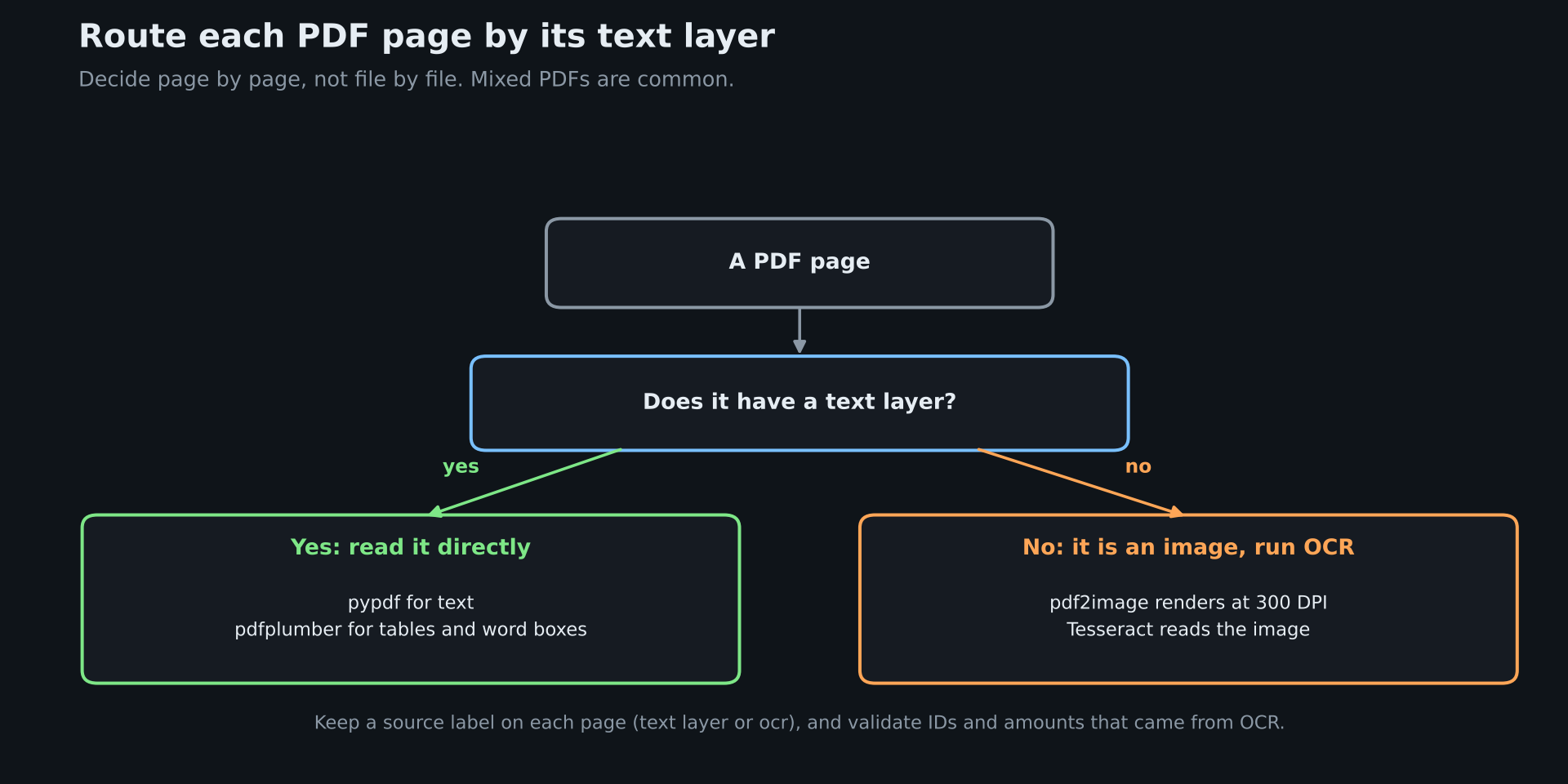
The first question for every file is whether it has a text layer at all. A PDF exported from Word or an accounting system carries text. A PDF made by scanning paper carries only an image. DeepRead's explainer on how OCR platforms work covers the OCR side, and its guide to AI document parsing shows how parsing output can carry locations with each element. Libraries handle the first kind well. For the second, you need OCR.
Set Up the Test File and Libraries
The examples use four Python packages and two system tools. Install the packages with pip, and install Tesseract and Poppler through your operating system. The OCR step needs both system tools.
pip install pypdf pdfplumber pytesseract pdf2imageThe test PDF, mixed.pdf, has two pages. Page 1 is a statement with a real text layer and a bordered table. Page 2 is an image of a remittance note with no text layer, which is how a scanned page looks to a parser. The code was tested with pypdf 6.17.0, pdfplumber 0.11.10, and Tesseract 5.3.4.
from pypdf import PdfReader

import pdfplumber

import pytesseract

from pdf2image import convert_from_path
Step 1: Check Whether Each Page Has a Text Layer
Count the characters pypdf can read on each page. A page with almost none is probably a scan.
def page_report(path, min_chars=20):

"""Read each page's text layer and flag pages that have none, like scans."""

reader = PdfReader(path)

report = []

for number, page in enumerate(reader.pages, start=1):

text = (page.extract_text() or "").strip()

report.append({

"page": number,

"chars": len(text),

"has_text": len(text) >= min_chars,

"text": text,

})

return report
On the test file, page 1 reports 208 characters and page 2 reports zero:
[(1, 208, True), (2, 0, False)]Do this check per page, not per file. A PDF can also mix both, such as a typed contract with a scanned signature page. The pypdf documentation is direct about the limit: it is not OCR software, and it will never extract text from images. It also notes that scanners often run OCR and put the recognized text behind the image, and pypdf can extract that hidden text, so a scan is not always empty. For those files, the docs still recommend using OCR software directly, because errors can accumulate.
Step 2: Extract Text With pypdf
For a page with a text layer, extract_text() is the simplest call. On the test table, plain mode returned one cell per line:
Date
Description
Amount
2026-10-02
Widget A, qty 4
$50.00
The same page in layout mode keeps the columns aligned. Call extract_text(extraction_mode="layout") to get it:
 Date                   Description                                     Amount
 2026-10-02             Widget A, qty 4                                 $50.00
 2026-10-09             Widget B, qty 10                                $32.00
 2026-10-14             Shipping                                        $18.00
                        Total due                                       $100.00
Layout mode is a quick fix when you only need to read the page or search it. It is still a string, so you would have to split the columns yourself. For a real table, use the next step.
Step 3: Extract Tables and Word Positions With pdfplumber
pdfplumber is built on pdfminer.six and released under the MIT license. It returns tables as rows and exposes the position of every word. Like pypdf, it does not perform OCR.
def read_tables(path):

"""Return every table pdfplumber finds, with its page number."""

tables = []

with pdfplumber.open(path) as pdf:

for number, page in enumerate(pdf.pages, start=1):

for rows in page.extract_tables():

tables.append({"page": number, "rows": rows})

return tables
On the test file, this returned one table with the header and four rows, and the last row held the total:
[{'page': 1, 'rows': [['Date', 'Description', 'Amount'], ['2026-10-02', 'Widget A, qty 4', '$50.00'], ['2026-10-09', 'Widget B, qty 10', '$32.00'], ['2026-10-14', 'Shipping', '$18.00'], ['', 'Total due', '$100.00']]}]The default table finder looks for ruled lines, so this bordered table is the easy case. If a table has no borders, extract_tables() can return an empty list. In a test with an unruled version of the same table, default settings returned []. Passing {"vertical_strategy": "text", "horizontal_strategy": "text"} returned the rows, with blank rows between them that needed filtering. You can also read word positions instead. Word positions come from extract_words():
def read_words(path, page_number=1):

"""Return each word on one page with its bounding box in PDF points."""

with pdfplumber.open(path) as pdf:

page = pdf.pages[page_number - 1]

return [

{"text": w["text"], "x0": round(w["x0"], 1), "top": round(w["top"], 1),

"x1": round(w["x1"], 1), "bottom": round(w["bottom"], 1)}

for w in page.extract_words()

]
The first words on the test page came back with their boxes:
[{'text': 'Northwind', 'x0': 72.0, 'top': 59.3, 'x1': 151.1, 'bottom': 75.3}, {'text': 'Traders', 'x0': 155.6, 'top': 59.3, 'x1': 214.2, 'bottom': 75.3}, {'text': 'Statement', 'x0': 218.7, 'top': 59.3, 'x1': 296.0, 'bottom': 75.3}]Coordinates are in PDF points, where 72 points make an inch. Boxes are what let you crop a region, check a value against its source, or highlight it for a reviewer.
Step 4: Run OCR on Scanned Pages
A page with no text layer has to be rendered as an image and read with OCR. pdf2image renders the page, and Tesseract reads it. Render at 300 DPI, because Tesseract's documentation says it works best on images of at least 300 DPI.
def ocr_page(path, page_number, dpi=300):

"""Render one page to an image and run Tesseract on it."""

image = convert_from_path(path, dpi=dpi, first_page=page_number,

last_page=page_number)[0]

return pytesseract.image_to_string(image).strip()
On page 2 of the test file, the output was:
Remittance advice

Paid in full on 2026-11-05

Reference: PAY-9041/7
The page said PAY-90417. Tesseract read the last two characters as a slash and a 7. This is typical OCR behavior, and it matters most on identifiers, amounts, and dates, where one wrong character makes the value wrong. Validate anything that matters, for example by checking a reference against a known pattern, or by sending low-confidence values to a person. DeepRead's OCR software overview lists the preprocessing steps that improve OCR quality, such as deskewing and noise removal.
Step 5: Combine the Steps Into One Function
The last piece uses the text layer where it exists and calls OCR only for pages that need it. That keeps typed pages fast and exact, and it avoids running slow OCR on text that is already there.
def parse_pdf(path):

"""Use the text layer where it exists and OCR only the pages that need it."""

pages = []

for info in page_report(path):

if info["has_text"]:

pages.append({"page": info["page"], "source": "text layer",

"text": info["text"]})

else:

pages.append({"page": info["page"], "source": "ocr",

"text": ocr_page(path, info["page"])})

return pages
Running it on the test file returned the text layer for page 1 and OCR for page 2:
[(1, 'text layer'), (2, 'ocr')]Keeping a source label on each page is worth the extra key. When a value looks wrong later, you can tell whether it came from a clean text layer or from OCR.
PDF Parsing Libraries Compared
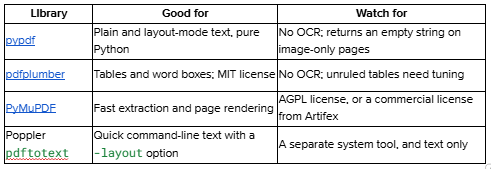
The license row for PyMuPDF deserves a second look before you adopt it. PyMuPDF is available under the open-source AGPL or a commercial license, and Artifex is the exclusive commercial licensing agent for the underlying MuPDF library. If your code is a closed-source product or service, check with your legal team before you build on it. The other libraries in the table work without that decision.
When Libraries Stop Being Enough
Everything above returns text, tables, and positions. It does not tell you which number is the invoice total, and every vendor's invoice lays that number out differently. If you need named values from many layouts, you end up writing rules per vendor, and those rules break when a supplier changes a template.
That is the job a document API takes over. DeepRead takes a PDF, scan, or image and returns the fields you define as JSON, each with its page, bounding box, and source text, plus a needs_review flag with a reason when a value is uncertain. Its extract mode also returns the document as Markdown with layout blocks and bounding boxes, so one call covers both the text and the fields. DeepRead's guide to structured data extraction explains how schema-driven extraction works, and its comparison of AI platforms for document extraction puts it next to other tools.
The practical details, from DeepRead's pricing page:
- The Free plan includes 2,000 pages a month with no card, with documents up to 50 pages and 15 MB, in PDF, PNG, or JPEG.
- Standard has no monthly page limit and charges $15 per 1,000 pages for Extract and $35 for Deep Extract, which adds two OCR engines, adjudication of disagreements between them, and a verification pass on every value.
- Standard accepts documents up to 1,000 pages and 50 MB, and Enterprise pricing is custom.
- Processing is hosted only, so files must leave your machine. DeepRead has no self-hosted option and no BAA on any plan.
That last point decides many cases. For files that cannot leave your network, the local libraries above are the right tool. For files that can, a document API trades per-page cost for less custom parsing code. A fair test is to run 50 of your own PDFs through both paths and compare the fields you care about.
Common Problems and Fixes
- Empty text from a page. The page is probably an image. Use the Step 1 check, then OCR it.
- Table cells come out one per line. Plain text mode does not keep columns. Use layout mode, or extract_tables() for real rows.
- extract_tables() returns an empty list. The table may have no ruled lines. Try the text strategy in the table settings, or rebuild rows from word positions.
- A value looks right but is off by a character. This is OCR, as the PAY-9041/7 example shows. Validate identifiers and amounts.
- Text in the wrong order on multi-column pages. Crop each column with pdfplumber and read them one at a time.
Conclusion
To parse a PDF file reliably, decide page by page which route it needs. Read the text layer where there is one, use pdfplumber when you need tables or positions, and run OCR only on image pages. Keep the source of each page, and validate the values that matter.
When the goal shifts from reading pages to extracting named values from many layouts, a document API is worth testing next to your own code. Run your own files through both, and decide on measured results.
FAQ
How do I parse a PDF file in Python?
Use pypdf for text, pdfplumber for tables and word positions, and Tesseract for scanned pages. Check each page for a text layer first, because the right tool depends on whether the page holds text or an image.
Can I parse a scanned PDF?
Yes, but not with pypdf or pdfplumber alone, since neither performs OCR. Render the page to an image and run an OCR engine such as Tesseract, as in Step 4.
What is the difference between parsing a PDF and OCR?
Parsing reads the text a PDF already contains. OCR reads text out of an image. A scanned PDF has to go through OCR before any parser has text to work with.
How do I extract a table from a PDF?
Use pdfplumber's extract_tables(), which returns rows for tables with ruled lines. For unruled tables, change the table settings or rebuild rows from word positions.
Is PyMuPDF free for commercial use?
It depends on your license choice. PyMuPDF is available under the open-source AGPL or a commercial license from Artifex. If you cannot meet the AGPL's terms, contact Artifex about a commercial license.
More articles
Semantic Document Search: How It Works and How to Build It with Embeddings
How semantic document search works, plus a Python build: extract, chunk, embed, and search, with a tested keyword, semantic, and hybrid comparison.

Unstructured Data Extraction Tools: How to Choose by Input Type
Choose unstructured data extraction tools by input: PDFs, scans, emails, images, and long reports. Tested Python code, honest limits, and when an API fits.