%20{%20:root%20{%20--deepread-stroke:%20%23E5E7EB;%20}%20}%20.dark%20{%20--deepread-stroke:%20%23E5E7EB;%20}%20%3c/style%3e%3crect%20x='40'%20y='30'%20width='220'%20height='260'%20rx='28'%20ry='28'%20stroke='var(--deepread-stroke)'%20stroke-width='16'%20fill='none'/%3e%3cpath%20d='M180%2030v52c0%2010%208%2018%2018%2018h62'%20stroke='var(--deepread-stroke)'%20stroke-width='16'%20fill='none'/%3e%3cline%20x1='70'%20y1='130'%20x2='200'%20y2='130'%20stroke='var(--deepread-stroke)'%20stroke-width='16'%20stroke-linecap='round'/%3e%3cline%20x1='70'%20y1='165'%20x2='200'%20y2='165'%20stroke='var(--deepread-stroke)'%20stroke-width='16'%20stroke-linecap='round'/%3e%3cline%20x1='70'%20y1='200'%20x2='170'%20y2='200'%20stroke='var(--deepread-stroke)'%20stroke-width='16'%20stroke-linecap='round'/%3e%3c!--%20green%20download%20arrow%20in%20bottom%20right%20corner%20--%3e%3cpath%20d='M210%20202v58'%20stroke='var(--deepread-accent)'%20stroke-width='18'%20stroke-linecap='round'/%3e%3cpath%20d='M195%20245l15%2015%2015-15'%20fill='none'%20stroke='var(--deepread-accent)'%20stroke-width='18'%20stroke-linecap='round'%20stroke-linejoin='round'/%3e%3c/svg%3e)
Automate PDF Form Filling
How to automate PDF form filling with Power Automate, APIs, and code libraries, including options without a premium connector, form types, and common fixes.
Filling the same PDF form by hand, again and again, is slow and error-prone: onboarding packets, tax forms, insurance applications, customs paperwork, HR forms. Automated PDF form filling replaces the retyping. A workflow takes data from a spreadsheet, database, web form, or another document, drops each value into the right field of a PDF, and saves or sends the result.
This guide explains how it works, which kinds of PDF forms you can fill and how, how to do it in Power Automate with and without a premium connector, and how seven tools compare. It also covers why filled fields sometimes look blank and where the source data comes from. DeepRead's overview of intelligent document workflow automation shows where form filling sits in a wider document process. Pricing and limits come from vendor pages and should be confirmed before you buy.
What Automating PDF Form Filling Means
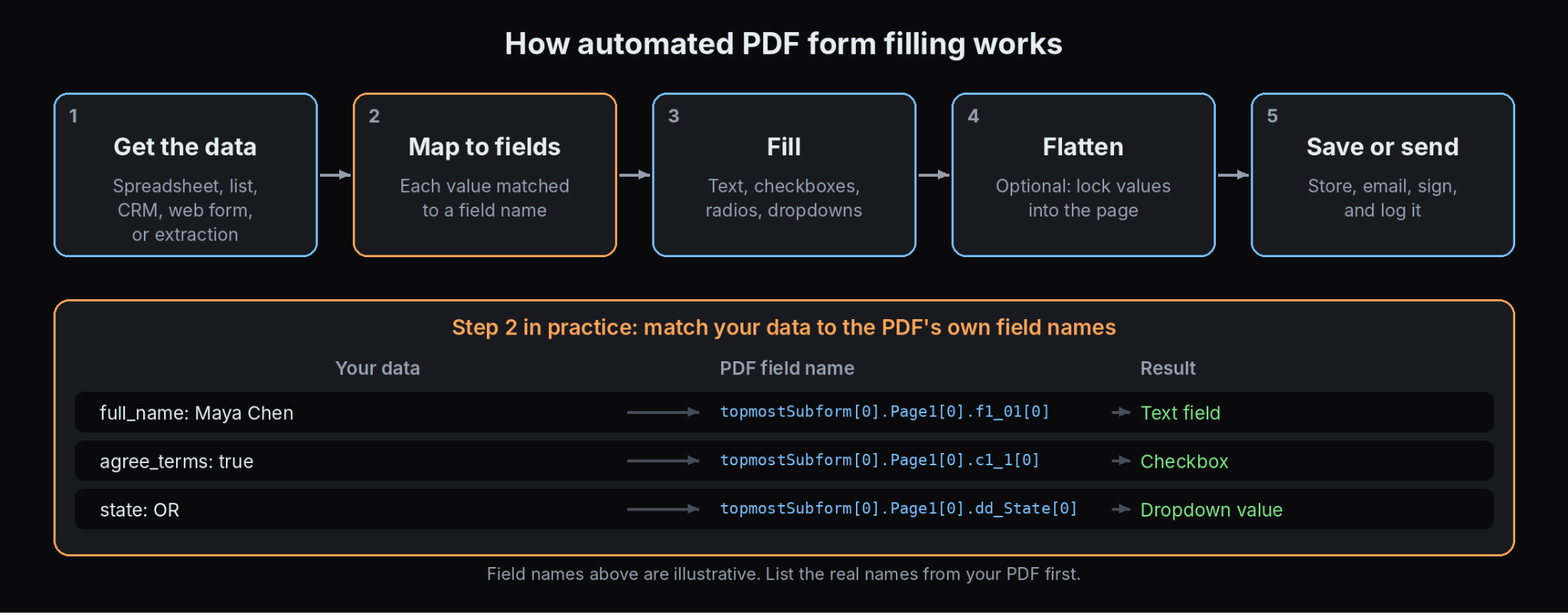
The core idea is a repeatable mapping. A fillable PDF has named fields. Your data has named values. Automation connects the two and runs the fill for every record.
- Get the data from a spreadsheet, a SharePoint list, a CRM, a form submission, or an extraction step.
- Match each value to a field name in the PDF.
- Fill the form, setting text, checkboxes, radio buttons, and dropdowns.
- Flatten if needed, so the values become regular page content and the form can no longer be edited.
- Save, send, or sign the result, and log what was produced.
The fill itself is easy. The work is in the mapping, in checking that the output renders correctly in the viewers your recipients use, and in getting the source data right.
Types of PDF Forms and How Each Is Filled
How you automate depends on what kind of form you have.
- AcroForms are the standard fillable PDFs. They contain named form fields, and most libraries and connectors can fill them. They are the easiest case.
- XFA forms are XML-based forms created with Adobe's designer tools. They are less widely supported. Aspose lists XFA filling among its features, pdfRest supports both XFA and AcroForms, and one community-built Apify filler reports dynamic XFA forms, which have no AcroForm fields at all, as unsupported. Check XFA support before you commit to a tool.
- Flat or non-fillable PDFs have no fields. PDF.co's tutorial says its PDF Filler needs interactive fillable fields, and points to its text and image tools to place content by coordinates on flat or scanned forms. The result is positioned text and not true form fields.
A quick first step is to open the PDF and list its fields. If the list is empty, you have a flat PDF and need a coordinate-based approach, or you can rebuild the form as a fillable one.
Top Tools to Automate PDF Form Filling
Pricing and limits come from each vendor's own pages where noted. Several vendors do not publish all details, and those entries say so.
Encodian
- What it automates: A Power Automate and Logic Apps connector with actions to fill a PDF form from JSON, get form data, and flatten a PDF, among many other document actions.
- Pricing: A 30-day trial with 500 actions, then a free plan of 50 actions a month. Paid plans start at $499 a year for 500 actions a month and go up by action volume, according to Encodian's pricing page as indexed. Utility actions count for a fraction of an action.
- Limits: The connector is throttled to 100 calls per connection per 60 seconds, per Microsoft Learn. Capabilities are stronger for AcroForms than XFA.
- Best for: Power Automate teams that want a Standard-licensed connector for filling PDFs.
- Pros: Listed as a Standard connector, a free tier, and companion actions to read form data and flatten.
- Cons: It is a separate subscription, and heavy volume is priced by actions.
Plumsail Documents
- What it automates: Filling fillable PDFs from JSON in Power Automate, plus generating documents from templates.
- Pricing: Plumsail's tutorial says the service is free to try for one month with no credit card. It does not describe paid plans or connector licensing, so confirm both.
- Limits: Not stated in the tutorial. Property names in the JSON must match the PDF's field names.
- Best for: Teams that fill forms from SharePoint list data.
- Pros: A simple action with a lock-fields option, and a clear SharePoint example.
- Cons: Licensing and pricing details were not available to confirm.
PDF.co
- What it automates: A web API with a PDF Filler that fills fillable fields using a page;fieldName; value format, plus separate text and image tools that place content at coordinates on flat or scanned forms. It integrates with Zapier, Make, and Power Automate.
- Pricing: Not published on the pages reviewed.
- Limits: Field names are case-sensitive and must match exactly, page numbers start at zero, and radio buttons and other controls can behave differently depending on how the form was built, so test them. Flat forms need coordinates.
- Best for: No-code workflows that need to fill both fillable and flat PDFs.
- Pros: Covers fillable and flat forms with different tools, and has tutorials for several automation platforms.
- Cons: The Power Automate integration is a custom connector, which licensing guides treat as premium, so check your plan.
pdfRest
- What it automates: A REST API with an Import Form Data tool that fills AcroForms and XFA forms from a data file, and an Export Form Data tool to read the structure first.
- Pricing: Import Form Data is a Pro tool, included with Pro and Enterprise plans, and Premium plan users can access it per call. Output on lower plans is watermarked or limited, according to its listing, and the page does not show prices.
- Limits: Data files must match the form type: FDF, XFDF, or XML for AcroForms, and XDP, XFD, or XML for XFA. pdfRest claims full support for both static and dynamic XFA, which is a vendor claim to test.
- Best for: Developers who need an API that also handles XFA.
- Pros: Supports both form types and pairs with a tool for data protection.
- Cons: Needs a Pro plan for unrestricted use, and the data formats require preparation.
Aspose.PDF
- What it automates: A commercial PDF library and a cloud REST API that fill AcroForm fields, work with XFA forms, import and export FDF, XFDF, and XML, flatten fields, and read field names and types.
- Pricing: Licensed commercially, and the pages reviewed do not list prices.
- Limits: Not stated on the pages reviewed.
- Best for: Teams that want a supported library in Java, .NET, Python, or another language, with XFA coverage.
- Pros: A broad form feature set, including field renaming and flattening.
- Cons: Commercial licensing and pricing that are not public.
pdf-lib
- What it automates: An open-source JavaScript library that can create, fill, and flatten forms, and modify existing PDFs. It runs in Node, browsers, Deno, and React Native.
- Pricing: Free under the MIT license.
- Limits: The pages reviewed describe form filling and flattening for standard fields. They do not describe XFA support.
- Best for: JavaScript developers who want filling inside their own app or in the browser.
- Pros: No per-document fee and wide runtime support.
- Cons: You write and maintain the code, and you test rendering in your target viewers.
pypdf
- What it automates: An open-source Python library that reads fields and fills them with update_page_form_field_values, with options to regenerate appearances and to flatten.
- Pricing: Free and open source.
- Limits: Its documentation explains that an /XFA entry can override the page content, and recommends setting auto_regenerate to False in most cases.
- Best for: Python developers filling batches of AcroForms from data files.
- Pros: Simple API, flattening support, and clear notes on how form fields are stored.
- Cons: Its forms documentation does not describe XFA support, and you handle mapping, errors, and rendering checks yourself.
Common Use Cases
- Employee and vendor onboarding: tax and payment forms, such as a W-9, filled from an HR or vendor system. DeepRead's guide to AI document processing for AP automation covers the vendor and invoice side of that process.
- Insurance: applications and supplemental forms completed from submission data. DeepRead's guide to AI document extraction for insurance underwriting covers the intake that feeds them.
- Trade and customs: declarations and certificates filled from shipment records, as covered in DeepRead's guide to automated trade documentation tools.
- HR, education, and government: applications, consent forms, and permits generated from a records system.
- Contracts and agreements: standard forms populated with party details before signature.
How to Fill a PDF Form in Power Automate
The sources reviewed show no built-in Power Automate action that fills an existing PDF form, so you choose a connector or a workaround. The common routes:
- Encodian "Fill a PDF Form." It takes the PDF and a JSON object of field values and returns a filled file. Encodian's blog says it supports both XFA and AcroForms, with support stronger for AcroForms.
- Plumsail Documents "Fill in PDF Form." It takes the PDF content and a JSON object whose property names match the field names, and has an option to lock the fields after filling. Plumsail's tutorial pulls the data from a SharePoint list.
- PDF.co. PDF.co's tutorial uses a custom connector in Power Automate with a PDF Filler function that takes the file URL and form field values, and its Zapier tutorial notes the source PDF must have interactive fillable fields.
- Adobe PDF Services. Plumsail states that the Adobe PDF Services connector for Power Automate does not provide actions for filling PDF forms, so it is not the route for this job.
A typical flow has four steps: a trigger such as a new or changed SharePoint list item, a "Get file content" step for the blank PDF, the fill action with your JSON, and a "Create file" step to save the result with a .pdf extension.
Power Automate: Fill a PDF Form Without a Premium Connector
This is the question many teams are really asking, and the honest answer has two parts.
What works. Power Automate's standard connectors are covered by Microsoft 365 and the free plan, while premium connectors need a paid license, listed at about $15 per user per month in the guides reviewed. A premium connector in a flow makes the whole flow premium.
- Encodian's PDF connector is classified as Standard on Microsoft Learn, so using it does not require a Power Automate Premium license. It is a third-party service with its own subscription, and its pricing page lists a free plan of 50 actions a month. Higher plans are priced by actions per month, with one tier listed at $499 a year for 500 actions a month. Confirm current pricing.
- If you generate the PDF from a Word template, you can avoid premium connectors altogether. A published method uses SharePoint document properties as placeholders in a Word file, updates the properties with the data, saves a copy to OneDrive, and uses the OneDrive "Convert file" action to create a PDF. The same author says this replaces the premium "Populate a Microsoft Word template" action.
What does not work. If you must fill an existing PDF form that someone gave you, with only Microsoft's standard actions, there is no direct way. A Microsoft community forum answer says the same, and points to Encodian as the standard-connector exception. The Word route creates a new PDF from a Word document. It does not fill a form.
Other options are a canvas app control that fills PDFs with the open-source pdf-lib library, which its publisher describes as working without a premium flow connector, though you should check the licensing for custom code components, and Power Automate Desktop, whose attended mode is part of the paid plan.
Getting the Data: Extraction Upstream of Form Filling
Filling is only as good as the data. Often the values you need sit in other documents, such as IDs, invoices, applications, or emails, and have to be read out first. That step is extraction, and it is where mistakes enter. DeepRead's guide to structured data extraction explains how documents become fields you can map to a form.
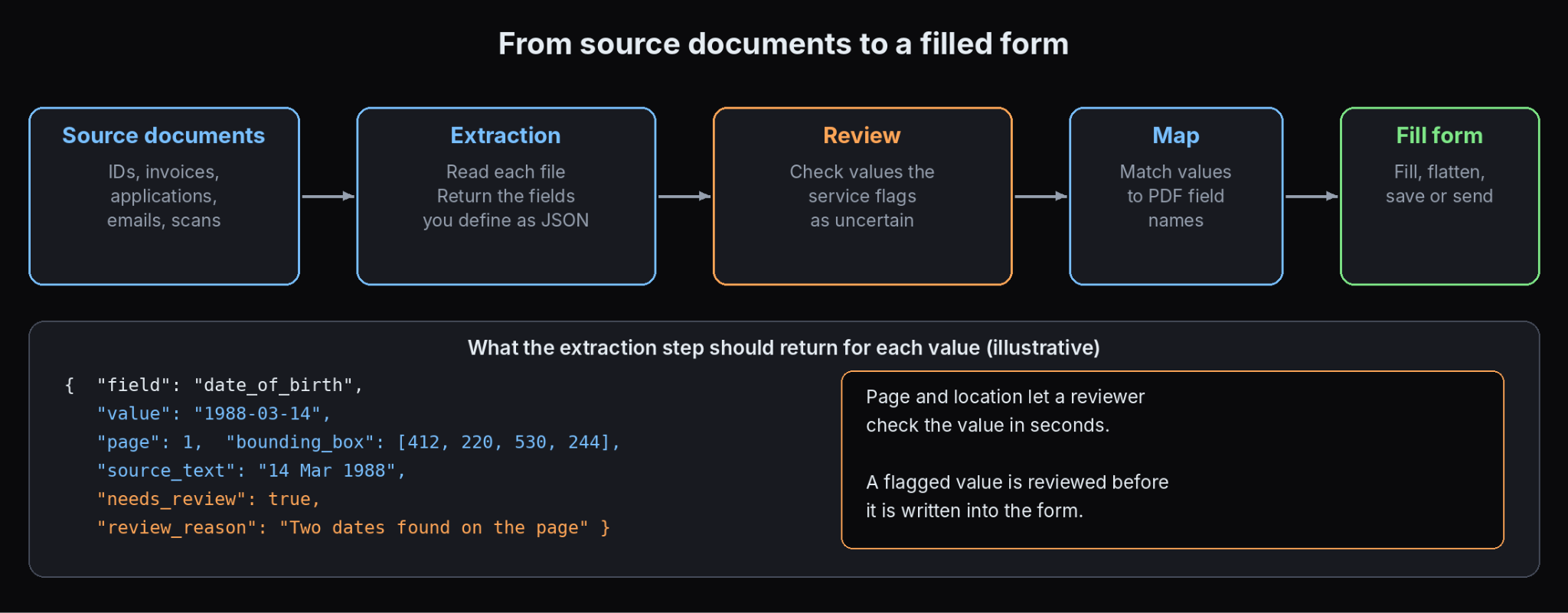
DeepRead is an example of a service for that step. It returns the fields you define as JSON, with each value's page, bounding box, and source text, and it marks uncertain values needs_review with a reason, so a person can check them before a form is filled. It does not return a numeric confidence score. Its pricing page lists form filling among its Enterprise features, but the page gives no detail on how it works, so confirm the scope with DeepRead. Extract is $15 per 1,000 pages, Free covers 2,000 pages a month, and processing defaults to US East with no self-hosted option or BAA.
Why Filled Fields Look Empty and Other Technical Issues
- Missing appearance streams. Setting a field's value is not always enough for it to display. A community-built Apify filler explains that a field whose appearance stream was not regenerated shows up blank in Chrome, Preview, and most non-Adobe viewers. pypdf exposes this through the NeedAppearances flag and its auto_regenerate option, and its docs recommend auto_regenerate=False in most cases. Test your output in several viewers.
- XFA layers. In a file with both AcroForm and XFA data, the XFA form can override what you filled. The same filler removes the stale XFA layer so Acrobat shows the values.
- Field names. Names are often unhelpful, such as "form1[0].Page1[0].field1[0]". List the fields first, then build a mapping table in your workflow.
- Checkboxes, radios, and dropdowns. They take specific values, often not "true" or "yes". Read the allowed values from the field before filling.
- Flattening. Flatten when the result is a final record, and keep an unflattened copy if people need to edit.
- Fonts and long text. Long values can overflow a field, so check field limits and font size.
- Scanned forms. Without fields, you need coordinates, which makes layout changes break the fill.
How to Choose
- You use Power Automate and want no premium license: Encodian's connector for existing PDFs, or the Word template route if you are creating the document.
- You use Power Automate and fill from SharePoint: Plumsail Documents or Encodian.
- You need XFA support: pdfRest or Aspose, and test with your actual form.
- You have flat or scanned forms: PDF.co with coordinates.
- You are a developer and want control and no per-document fee: pdf-lib or pypdf.
- Your data comes from other documents: add an extraction step first.
Conclusion
Automated PDF form filling is a mapping problem more than a technology problem. Identify the kind of form, list its fields, map your data to them, and test the output in the viewers your recipients use. In Power Automate, the practical route for an existing PDF form without a premium license is a Standard connector such as Encodian, and the Word template route when you are generating a new document. For developers, pdf-lib and pypdf cover most AcroForm work. Add an extraction step when your data lives in other documents.
Frequently Asked Questions
How do I automate PDF form filling?
Map your data to the field names in a fillable PDF, then use a workflow connector, an API, or a code library to fill each copy, flatten it if needed, and save or send it.
Can Power Automate fill a PDF form?
Not with a built-in action. You use a connector such as Encodian or Plumsail Documents, a custom connector such as PDF.co, or a Word template that you convert to PDF.
How do I fill a PDF form in Power Automate without a premium connector?
Encodian's PDF connector is listed as a Standard connector on Microsoft Learn, so it does not need a Power Automate Premium license, though it has its own subscription with a free tier of 50 actions a month. If you are creating the document, you can fill a Word template with standard SharePoint and OneDrive actions and convert it to PDF.
Is the Adobe PDF Services connector able to fill PDF forms?
According to Plumsail, the Adobe PDF Services connector for Power Automate does not provide actions for filling PDF forms.
Can I fill PDF forms from Excel or a database?
Yes. Read each row, match columns to field names, and run a fill for each record. Consistent naming between columns and fields avoids most errors.
What is the difference between AcroForms and XFA?
AcroForms are the standard fillable PDFs and are widely supported. XFA forms are XML-based and less widely supported, and some tools do not handle dynamic XFA forms.
Why do my filled PDF fields look blank?
The field's appearance may not have been regenerated, so non-Adobe viewers show it empty. Regenerate appearances, flatten the file, or set the viewer-refresh flag, and test in several viewers.
Does DeepRead fill PDF forms?
DeepRead is a document extraction API. Its pricing page lists form filling among its Enterprise features, but details were not available, so confirm the scope with DeepRead. For the data side, it returns fields with page, bounding box, and source text, and flags uncertain values with needs_review and a reason.
More articles

Business Card OCR API
Compare business card OCR API and software options: fields returned, accuracy checks, pricing units, limits, privacy, and how to test on your own cards.

LLM OCR Accuracy Leaderboard
An LLM OCR leaderboard guide: current top scores on OmniDocBench, olmOCR-Bench, OCRBench v2, and the IDP Leaderboard, what each measures, and how to read them.