%20{%20:root%20{%20--deepread-stroke:%20%23E5E7EB;%20}%20}%20.dark%20{%20--deepread-stroke:%20%23E5E7EB;%20}%20%3c/style%3e%3crect%20x='40'%20y='30'%20width='220'%20height='260'%20rx='28'%20ry='28'%20stroke='var(--deepread-stroke)'%20stroke-width='16'%20fill='none'/%3e%3cpath%20d='M180%2030v52c0%2010%208%2018%2018%2018h62'%20stroke='var(--deepread-stroke)'%20stroke-width='16'%20fill='none'/%3e%3cline%20x1='70'%20y1='130'%20x2='200'%20y2='130'%20stroke='var(--deepread-stroke)'%20stroke-width='16'%20stroke-linecap='round'/%3e%3cline%20x1='70'%20y1='165'%20x2='200'%20y2='165'%20stroke='var(--deepread-stroke)'%20stroke-width='16'%20stroke-linecap='round'/%3e%3cline%20x1='70'%20y1='200'%20x2='170'%20y2='200'%20stroke='var(--deepread-stroke)'%20stroke-width='16'%20stroke-linecap='round'/%3e%3c!--%20green%20download%20arrow%20in%20bottom%20right%20corner%20--%3e%3cpath%20d='M210%20202v58'%20stroke='var(--deepread-accent)'%20stroke-width='18'%20stroke-linecap='round'/%3e%3cpath%20d='M195%20245l15%2015%2015-15'%20fill='none'%20stroke='var(--deepread-accent)'%20stroke-width='18'%20stroke-linecap='round'%20stroke-linejoin='round'/%3e%3c/svg%3e)
Automated Data Entry Software
Compare automated data entry software by type: AI extraction, RPA, and integrations. See how it works, real-time error correction, and tools with pricing.
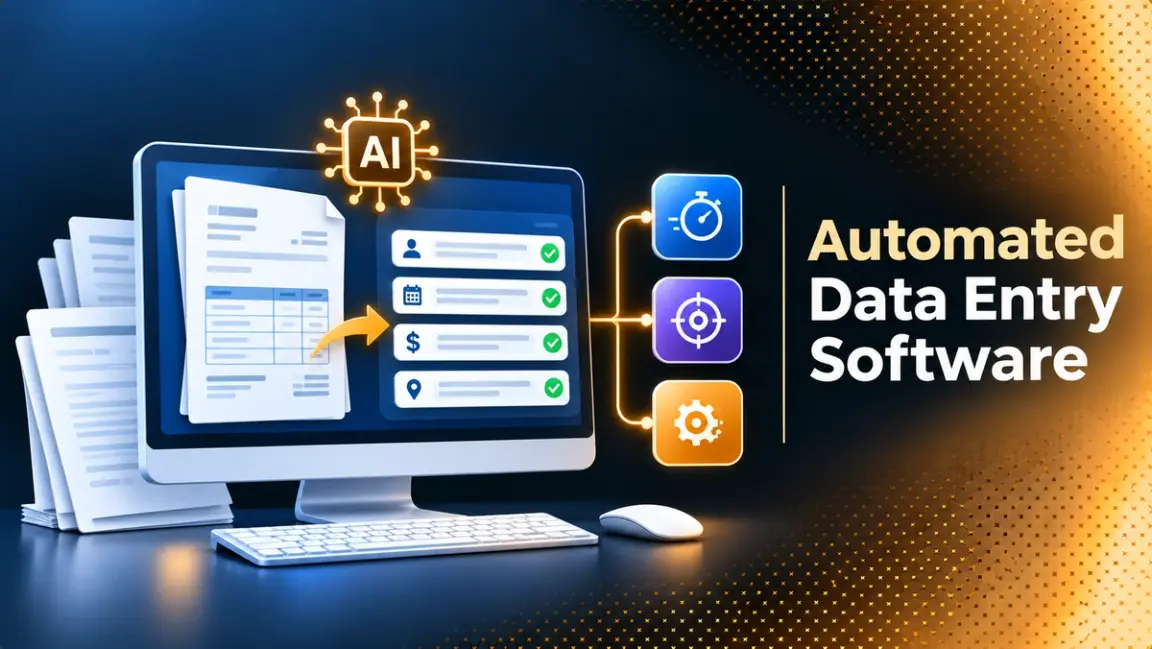
Manual data entry is slow, repetitive, and easy to get wrong, which is why teams look for auto data entry software. The term covers very different tools, though. Some read invoices and scanned forms, some type into applications the way a person would, some collect clean data from people through online forms, and some move records between apps. Picking the wrong type is the most common way to end up with a tool that does not fit the job.
This guide explains what automated data entry software is, how it works, the main types, what real-time error correction means in practice, the features that matter, and how five widely used tools compare. It also covers common use cases and how to choose. Pricing and limits are as of November 2026 and come from each vendor's own pricing page. Where a vendor publishes no price, that is stated. If the data you are keying comes from document workflows, DeepRead's guide to document workflow automation shows where data entry fits in the larger process.
What Automated Data Entry Software Is
Automated data entry software reads information from documents, forms, emails, or other applications and writes it into your systems without anyone retyping it. You will also see it called automatic data entry software, AI data entry software, data entry automation software, an automated data entry system, or automated data input. The names overlap, and they describe the same outcome: data reaches the right system without keying.
Two ideas are easy to confuse:
- OCR converts the pixels in an image into text. It does not know what the text means.
- Automated data entry adds field extraction, validation rules, review steps, and a way to send approved values into the systems your team already uses.
In other words, OCR gives you text, and intelligent document processing gives you structured, validated data that a business system can use. If you want the extraction side explained on its own, DeepRead's guide to structured data extraction covers how fields are defined and returned as typed output.
The source of the data decides the tool. Documents such as invoices, bank statements, and forms are a job for AI extraction. Applications with no API are a job for RPA. People entering information online are a job for forms with validation. Data that is already digital, such as records in one cloud app that need to land in another, is a job for an integration platform. Trade paperwork such as bills of lading and customs forms sits in the first group, and automated trade documentation tools cover that case in more depth.
How Automated Data Entry Works
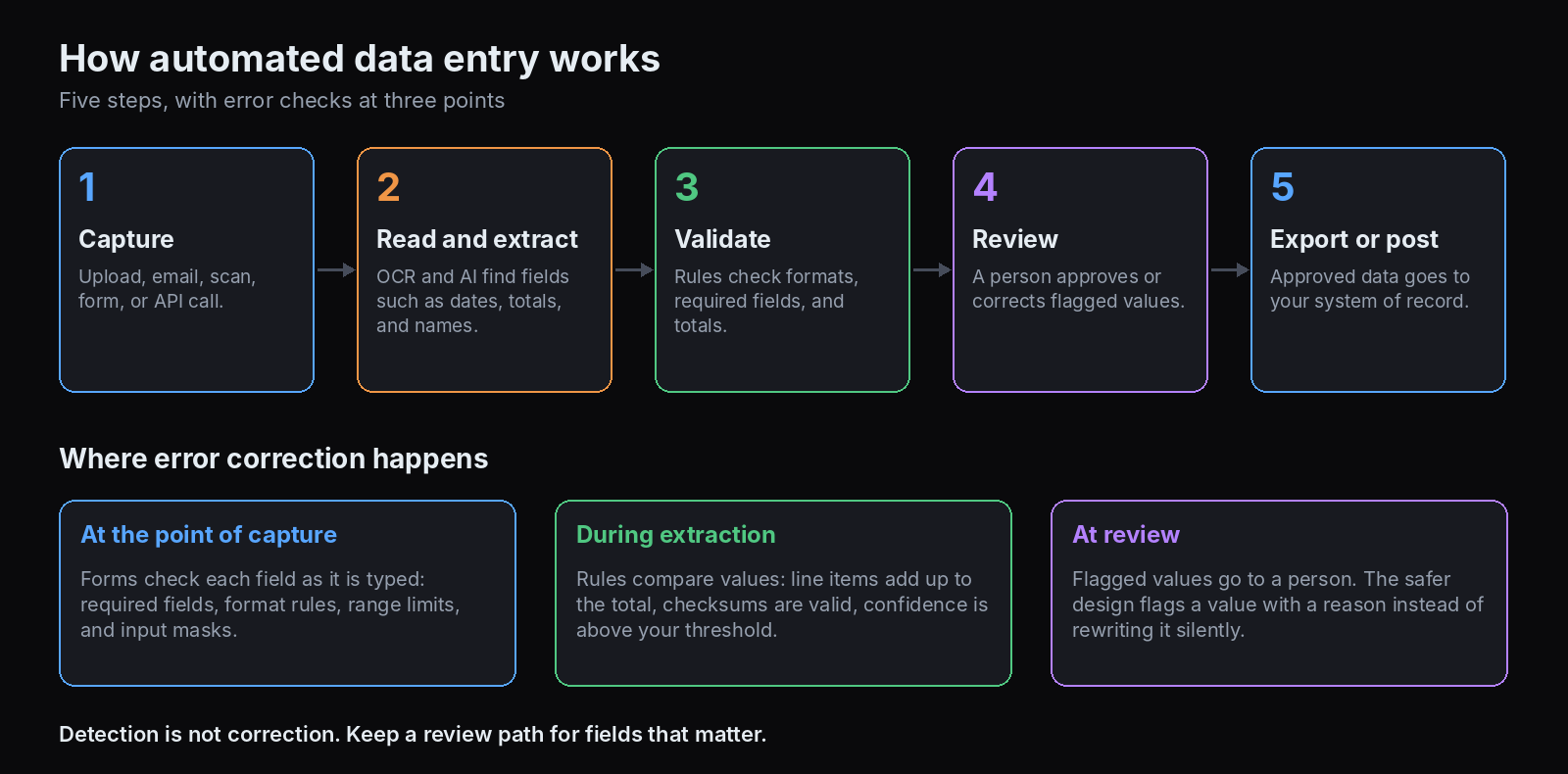
Most systems follow the same five steps, whatever the tool:
- Capture. The source arrives as an upload, an email, a scan, a form submission, or an API call. Input quality matters here, because poor scans produce poor results downstream.
- Read and extract. OCR and AI read the content and identify fields such as dates, totals, names, and reference numbers. Some tools use fixed templates, and newer ones read varied layouts without a template.
- Validate. Rules check that the data makes sense, for example that dates are valid, required fields are present, and line items add up to a total.
- Review. Values that fail a check, or that the system is unsure about, go to a person to approve or correct.
- Export or post. Approved data is sent to a spreadsheet, database, CRM, ERP, or accounting system through an integration, webhook, or API.
A good setup treats extraction and approval as separate steps. The data entry itself is easy to automate. The hard part at volume is the pipeline around it, which is why teams scaling this work often start with the issues covered in DeepRead's piece on scaling unstructured document processing.
Types of Automated Data Entry Software
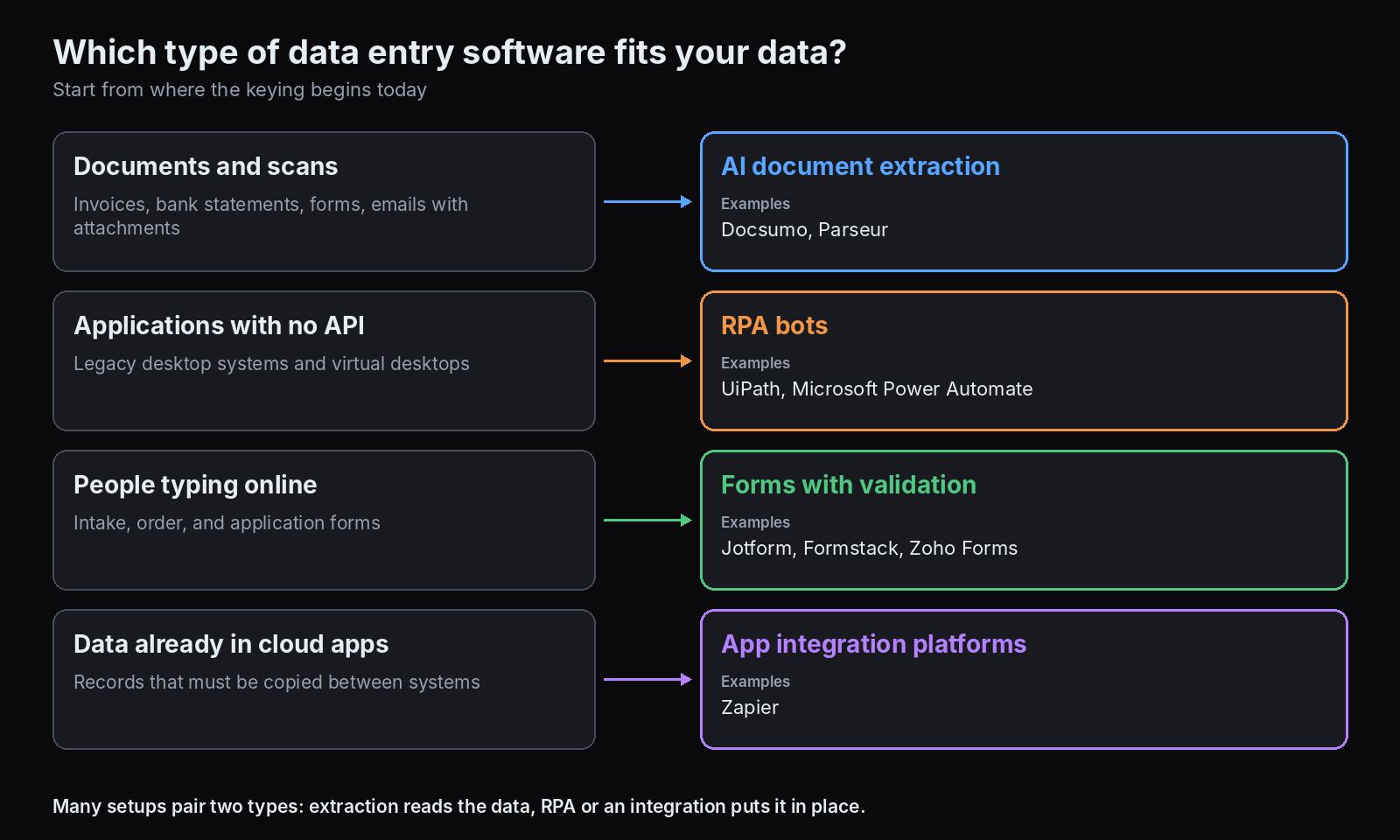
AI Document Extraction (IDP)
Intelligent document processing combines OCR, machine learning, and often RPA to read documents and return structured fields. It suits invoices, receipts, bank statements, forms, and emails with attachments. Tools in this group, such as Docsumo and Parseur, commonly price by page or document volume, a model DeepRead explains in its comparison of per-document and per-page pricing. LLM-based extraction, often marketed as AI data entry software, handles varied layouts without templates, but it needs guardrails: in one local test, small language models paired with OCR sometimes hallucinated fields, duplicated totals, or returned malformed JSON, and deterministic validation was what made results reliable.
Robotic Process Automation (RPA)
RPA software bots click and type in applications the way a person does. They fit applications with no API, such as legacy desktop systems and virtual desktops, and rule-based work such as posting records and updating fields. RPA does not read documents on its own, which is why it is usually paired with document extraction. UiPath and Microsoft Power Automate are the best-known examples.
Online Forms With Validation
Form builders such as Jotform, Formstack, and Zoho Forms collect data from people in a structured way and route it into other systems. Their error control is at the point of entry, through required fields, format checks, and input masks, which stops bad data from being typed in the first place.
App Integration Platforms
Integration platforms such as Zapier move records between apps when a trigger fires. They work when the data is already digital and you only need it copied reliably from one system to another.
Real-Time Error Correction in Data Entry Automation
Data entry automation software with real-time error correction catches mistakes as the data moves, not weeks later in a report. The phrase covers three layers, and it helps to separate them:
- At the point of capture. Forms and entry screens can validate each field as it is typed. Typical controls are required fields, format rules for dates and codes, range limits, and input masks for numbers, currency, and patterns such as phone numbers. These stop invalid values from being committed.
- During extraction and processing. After a document is read, rules check the values against each other and against reference data. UiPath's documentation, for example, suggests checking that line items add up to a total or that an ID number checksum is valid, and setting confidence thresholds the business can accept for each field. It also advises checking both extraction confidence and OCR confidence before deciding.
- At review. Values that fail a rule or look uncertain go to a person. UiPath's Validation Station lets reviewers correct and approve extracted data, and its documentation strongly recommends the step when you need 100% accuracy and cannot double-check the data against another source. Docsumo describes a confidence score on each extracted field and a review queue for exceptions, and lists validation and cross-document checks among its paid-plan features.
Two cautions apply. First, detection is not the same as correction. A system that silently rewrites a value can hide a real problem, so the safer design flags the value with a reason and lets a person decide. Second, "real time" is only as good as the rules behind it. Arithmetic checks, valid formats, and master-data lookups catch many errors, but they will not catch a plausible wrong value, so keep a review path for important fields.
Benefits of Automated Data Entry
- Less retyping. Staff stop copying values from documents and screens into systems.
- Fewer transcription errors. Removing copy and paste removes a common source of typos, missing fields, and misplaced values, although new kinds of errors, such as misreads, appear and need checks.
- Faster turnaround. Data reaches systems as soon as documents arrive, not after a keying queue.
- Better scaling. Volume can grow without a matching increase in data entry staff.
- A record of what happened. Systems with source evidence and review steps make it possible to see where a value came from and who approved it.
Be careful with headline numbers. Vendor pages often quote accuracy such as 99% field-level accuracy or 95% of documents approved without manual review, without explaining how the figures were measured. Treat those as vendor claims until you reproduce them on your own documents.
Features to Look For
- Input coverage. The file types, languages, and document layouts you actually handle, including phone photos and scans.
- Extraction without heavy setup. Pre-trained models for common documents, or template-free extraction for varied layouts.
- Validation rules. Field, arithmetic, and cross-document checks that run before data is exported.
- Human review. A queue for flagged values, with the original document shown beside the extracted data.
- Integrations. Connectors, webhooks, or an API that reach your system of record.
- Auditability. Logs of who changed or approved what.
- Security. Role-based access, data retention controls, and the certifications you require.
- Pricing model. Per page, per user, per bot, or per task, and what happens when volume grows.
Best Automated Data Entry Software Compared
The five tools below cover the main types. Pricing and limits come from each vendor's own pages, read in November 2026. Prices change often, so confirm before buying.
AI Document Extraction
Docsumo
- What it automates: Reading documents such as invoices, bank statements, receipts, and insurance and healthcare forms into structured fields, with a confidence score on each field and a review queue for exceptions before data is posted.
- Pricing: A 14-day free trial covers 1,000 pages and 10 user licenses. Business and Enterprise plans are quoted by volume, and setup fees are charged on top of the subscription.
- Limits: No fixed page cap is listed for Business or Enterprise. Custom third-party integrations are on Business and above, and cross-document validations and automated workflows are listed for Enterprise.
- Best for: Teams with high volumes of PDFs and scans that want validation and review built in.
- Pros: Pre-trained models, an AI document reviewer, validation features, integrations, webhooks, and an API on the trial. Its site states SOC 2 Type 2, ISO 27001, HIPAA, and GDPR support, plus role-based access and audit logging.
- Cons: Pricing for paid plans is not public, and the accuracy figures on its site, such as 99% field-level accuracy, are vendor claims with no stated method.
Parseur
- What it automates: Extracting structured data from emails and attachments, PDFs and scans, images, and spreadsheets, then sending it to other apps.
- Pricing: Free for up to 20 pages a month. Paid plans are priced by volume, for example 100 pages for $49 a month or $468 billed annually, 1,000 pages for $129 a month or $1,188 billed annually, and 10,000 pages for $499 a month or $4,788 billed annually. Listed tiers run up to 250,000 pages a month, and Enterprise is custom.
- Limits: The free plan is capped at 20 pages a month, one user, and 90-day document retention. Paid plans are capped by the monthly page tier you buy, and Enterprise allows up to 10 million pages a month, unlimited users, and purchase-order payment.
- Best for: Small and mid-size teams that want published prices and an easy start with email and PDF parsing.
- Pros: Published per-page pricing, a free tier that renews monthly, built-in OCR that Parseur says covers more than 200 languages, and integrations with Zapier, Google Sheets, Salesforce, Power Automate, Make, Airtable, n8n, and Slack, plus an API.
- Cons: Per-page costs add up at high volume, and the free tier is too small for real testing.
Robotic Process Automation
UiPath
- What it automates: Bots that work in applications, plus Document Understanding for extracting data from documents, with Validation Station for human review.
- Pricing: Community is free. Basic is listed at $25 a month, though UiPath's page says Basic is evolving. Standard and Enterprise are quote-based, and Standard offers a 60-day free trial.
- Limits: Basic does not include document extraction. Standard and Enterprise include document and communications data extraction at scale. UiPath's documentation lists Document Understanding on the Community plan as a maximum of 50 documents an hour, with documents limited to 2 pages and 4 MB.
- Best for: Organizations with an automation team and applications that have no API.
- Pros: Combines RPA and document extraction, with a built-in human validation step and confidence thresholds.
- Cons: Document extraction sits in quote-based tiers, and the platform is more than a small team usually needs.
Microsoft Power Automate
- What it automates: Cloud flows between apps and desktop flows that click and type in applications, plus process and task mining.
- Pricing: Premium is $15 per user per month, paid yearly, and includes cloud flows and attended desktop flows. Unattended bots are priced per bot and paid yearly: Process is $150 a month, and Hosted Process is $215 a month and adds a Microsoft-hosted virtual machine. Microsoft notes that displayed prices may differ at checkout.
- Limits: Premium covers attended flows, where a user is present, so unattended work needs a Process or Hosted Process bot. A bot can run one unattended flow at a time on its machine.
- Best for: Microsoft 365 organizations that need to type data into applications that have no API.
- Pros: Published per-user and per-bot pricing, and close fit with Microsoft environments.
- Cons: Costs rise per bot as you add unattended automation, and the Process Mining add-on is priced separately at $5,000 per tenant a month.
App Integration
Zapier
- What it automates: Moving records between apps when a trigger fires, such as sending form submissions or parsed data into a CRM or spreadsheet.
- Pricing: The Free plan covers 100 tasks a month. Professional starts from $19.99 a month and Team starts at $69 a month, and Zapier shows yearly billing as saving 33%. Task limits depend on the tier you select.
- Limits: Free is one user, 100 tasks a month, and two-step Zaps. Professional is one user, and Team supports up to 25 users. Prices rise with task volume.
- Best for: Data that is already digital and needs to be copied reliably between cloud apps.
- Pros: No-code setup, more than 9,000 apps listed, and webhooks and premium apps on Professional.
- Cons: It does not read documents on its own, so it is usually combined with an extraction tool.
Using an Extraction API for the Reading Step
Developers building their own entry workflow can use an extraction API for the hardest step, reading the document, and keep their own rules and approvals around it. DeepRead is one option. It returns the document as Markdown, with layout blocks and bounding boxes when you ask for them, and returns the fields you define in a schema as JSON, each linked to its page and source text. Values it is unsure about come back with a needs_review flag and a reason, not a numeric confidence score, and a review interface for flagged fields is on every plan.
The Free plan covers 2,000 pages a month with no card and accepts PDF, PNG, and JPEG files up to 15 MB. Paid usage is $15 per 1,000 pages for Extract and $35 for Deep Extract, which runs two OCR engines and verifies every value, and webhooks are available from the Standard plan. It extracts data and does not write into your systems, so you still need a workflow or integration layer to post the approved values.
Common Use Cases
- Invoices and bills. Reading supplier invoices and posting them to accounting or ERP systems.
- Receipts and expenses. Capturing merchant, date, and total from receipt photos.
- Forms and applications. Reading filled-in paper and PDF forms, including onboarding and claims forms.
- Email and attachments. Parsing orders, leads, and notifications from inboxes into CRM or spreadsheets.
- CRM and sales data. Moving lead and deal data between marketing, sales, and support tools.
- Legacy systems. Using RPA to key data into applications with no API.
- Trade and logistics paperwork. Extracting data from bills of lading, packing lists, and customs forms.
How to Choose Automated Data Entry Software
- Find where the keying starts. Documents, applications, people, or other apps each point to a different type of tool.
- Match the tool to your documents. Check for pre-trained models or template-free extraction for the formats you actually receive.
- Test on your own inputs. Run a small batch of real, messy documents, and measure field-level accuracy and how many need review.
- Look for validation and a review queue. Make sure failed checks are flagged with a reason and routed to a person.
- Confirm the last mile. Check that the tool connects to your system of record through a native integration, webhook, or API.
- Check security and cost. Confirm access controls, retention settings, and how pricing scales with volume.
- Combine tools where needed. Many setups pair an extraction tool with an RPA or integration tool, one reading the data and the other putting it where it belongs.
Conclusion
Automated data entry software is a family of tools, not a single product. AI extraction reads documents, RPA types into applications, forms catch errors at the source, and integration platforms move digital records. The right choice starts with where your data begins, and the tool you pick should validate data as it moves, flag what it is unsure about, and send those values to a person. Test on your own documents, measure accuracy yourself, and keep a review step for anything that matters.
Frequently Asked Questions
What is automated data entry software?
It is software that reads information from documents, forms, emails, or other apps and writes it into your systems without manual typing. Depending on the type, it uses OCR and AI, RPA bots, online forms, or integrations.
What is the difference between data entry software and RPA?
RPA moves data between applications by imitating clicks and typing. Document-focused data entry software reads unstructured or semi-structured documents and turns them into fields. Many setups use both: extraction reads the document, and RPA posts the result.
What is data entry automation software with real-time error correction?
It validates data as it moves through the process, through field rules at entry, checks such as totals that add up, and review queues for uncertain values. The safest versions flag errors with a reason for a person to resolve instead of changing values silently.
Can data entry be fully automated?
Some of it can, especially clean, structured data. For documents and important fields, most teams keep a review step for values that fail validation, because extraction can misread or invent values.
How much does automated data entry software cost?
It ranges from free plans to custom enterprise contracts. Document extraction tools usually price by page or document volume, RPA by user or bot, and integration platforms by task volume. As of November 2026, examples include Parseur from a free 20-page plan, Zapier from a free 100-task plan, and Power Automate Premium at $15 per user per month, paid yearly.
What is the best software for entering data from invoices and PDFs?
AI document extraction tools such as Docsumo and Parseur are built for this job, and extraction APIs suit developers. Test two or three on your own invoices and compare field-level accuracy and review rates.
How accurate is automated data entry?
It depends on input quality, document variety, and the validation around it. Vendor accuracy claims are not independent, so measure results on your own documents and track how many records need correction.
More articles
AWS Textract Alternatives
Looking for an AWS Textract alternative? Compare 8 options on published pricing, limits, and best use, plus why teams leave Textract and how to switch.
Top AI Tools for HR Document Processing
Compare top AI tools for HR document processing: payslip and onboarding extraction, document generation, e-signature routing, and RPA, with pricing and limits.